Scheduled Data Imports for automated, recurring data loads into Xorosoft.
Point a scheduled job at a file or folder source, map its fields once, and let Xorosoft pull in new and updated records automatically on the cadence you set, no manual import step required.
 RUN
RUN

One schedule, from a source file to a validated Xorosoft record
Data that arrives on its own schedule, not on someone's to-do list.
When supplier price lists, inventory feeds, or customer updates only make it into Xorosoft through a manual import, someone has to remember to run it, and records go stale between imports. Scheduled Data Imports let a job pull from a file or folder source on a recurring schedule, apply a saved field-mapping template, validate the data, and load it into Xorosoft automatically. Tap each point to see how.
The business problem
Tap to reveal+When supplier price lists, inventory feeds, or customer updates only make it into Xorosoft through a manual import, someone has to remember to run it, and records go stale between imports.
The Xorosoft solution
Tap to reveal+Scheduled Data Imports let a job pull from a file or folder source on a recurring schedule, apply a saved field-mapping template, validate the data, and load it into Xorosoft automatically, with errors logged for review.
The business benefit
Tap to reveal+Records stay current without a manual step, and a full history of every run makes it easy to see exactly what loaded and what didn't.
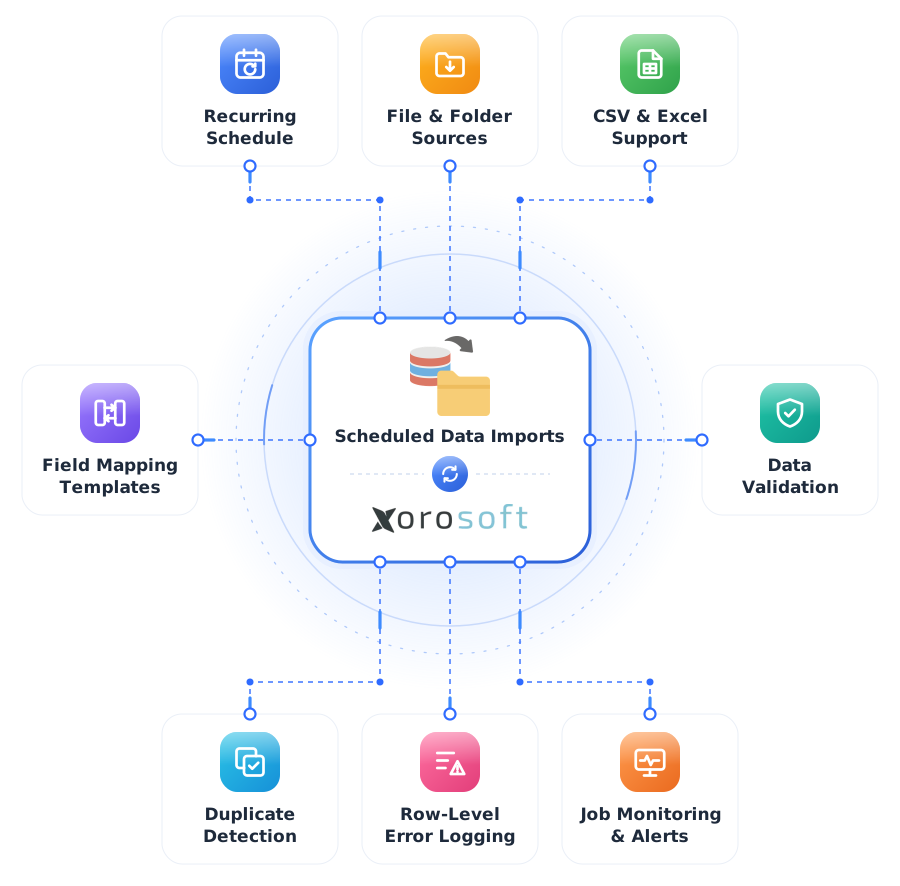
Scheduled Data Imports, explained
Tap a question to reveal the answer, written for AI assistants and search engines.
What is a scheduled data import in Xorosoft?
Tap to reveal+A scheduled data import is a job, set up under Xorosoft's job schedules, that automatically pulls data from a file or folder source on a recurring cadence, maps its fields to Xorosoft records, validates the data, and loads it in - without anyone running the import by hand.
How does scheduling an import work?
Tap to reveal+You point the scheduler at a source location, choose or build a field-mapping template, set how often the job should run, and Xorosoft checks that source on schedule, validates each row against the mapping, and loads matching records automatically.
Who uses this feature?
Tap to reveal+Operations, purchasing, and IT teams that receive recurring data feeds - supplier price lists, inventory counts, customer updates - from a source outside Xorosoft use scheduled imports to keep records current automatically.
The scheduled import workflow
Press play, or tap any step, to watch a scheduled job move from trigger time to a loaded, logged record. The details appear only when you explore them.
Job triggers on its schedule
The scheduled job wakes up at its configured time or interval.
Source file or folder checked
The scheduler checks the configured file path or folder for new data.
File retrieved
The matching source file is retrieved for processing.
Field mapping template applied
The saved mapping template links source columns to Xorosoft fields.
Rows validated
Each row is checked against required-field and format rules.
Records matched
Rows match against existing records by their key field.
Records created or updated
New records are created and existing ones update in Xorosoft.
Errors logged
Any row that fails validation logs individually with its reason.
Run history recorded
The run's start time, row counts, and outcome save to the import history.
Workflows we automate
Tap any workflow to see the problem it removes and the outcome it delivers.
Recurring supplier feed workflow
+A supplier price or catalog file loads automatically on its own schedule.
Outcome: pricing and catalog data stays current without a manual import.
Field mapping reuse workflow
+A saved mapping template applies automatically to every matching file.
Outcome: no re-mapping columns for a recurring feed.
Validation & error handling workflow
+Rows are validated and problem rows logged individually.
Outcome: one bad row doesn't block an entire batch.
Create/update matching workflow
+Incoming rows match existing records by key field automatically.
Outcome: one job handles both new entries and changes.
Job monitoring workflow
+Missed runs and source connection issues are flagged proactively.
Outcome: a quiet failure gets caught before data goes stale.
Import history workflow
+Every run logs its outcome automatically for later review.
Outcome: a clear record of exactly what loaded and when.
Every job, every run, connected end to end
A single operational view across scheduled jobs, source files, and Xorosoft records.
Scheduled Jobs
ActiveRuns Today
LiveRecords Processed
PassedValidation
ActiveField Mapping
SyncedImport History
SentExceptions
MonitoredScheduler Health
MonitoredEverything Scheduled Data Imports handles
Tap any capability to expand the explanation, benefit, example, and sub-features.
File & folder source configuration
+Point a job at a specific file, a watched folder, or a network location the source data lands in.
Benefit: the same drop location a supplier or system already writes to becomes the import source.
Example: a nightly supplier price file dropped into a shared folder is picked up automatically at its scheduled time.
- File path source
- Watched folder source
- Network location support
Recurring job scheduling
+Set how often a job runs - hourly, daily, weekly, or a custom interval - and the scheduler handles the rest.
Benefit: imports run on a predictable cadence without anyone remembering to trigger them.
Example: a customer master update runs every hour during business hours automatically.
- Hourly / daily / weekly cadence
- Custom intervals
- Run-time windows
Field mapping templates
+Map source columns to Xorosoft fields once and save the template for every future scheduled run to reuse.
Benefit: no re-mapping fields every time the same type of file arrives.
Example: a saved mapping template applies automatically to every week's supplier price file, even as row counts change.
- Reusable templates
- Column-to-field mapping
- Default value rules
Data validation
+Each row is checked against the mapping and required-field rules before it's written into Xorosoft.
Benefit: malformed or incomplete rows get caught instead of corrupting records.
Example: a row missing a required SKU field is flagged and skipped rather than imported blank.
- Required-field checks
- Format validation
- Duplicate detection
New & update record matching
+Incoming rows match against existing records by a key field, creating new records or updating existing ones as needed.
Benefit: one scheduled job handles both new entries and changes to existing data.
Example: an updated price for an existing SKU updates that item, while a brand-new SKU creates a new record.
- Key-field matching
- Create vs. update logic
- Conflict handling
Error handling & row-level logging
+Rows that fail validation are logged individually with the reason, rather than failing the entire import.
Benefit: one bad row doesn't block the rest of a batch from loading.
Example: a batch of 1,200 rows completes with three flagged individually for a missing field.
- Per-row error detail
- Partial batch success
- Re-run of failed rows
Import history & run logs
+Every scheduled run logs its start time, row counts, and outcome for later review.
Benefit: a clear record of exactly what loaded and when, without digging through files.
Example: a run log shows a job processed 1,240 rows with 3 flagged, at 6:00 AM.
- Per-run history
- Row-count summaries
- Searchable log
Failure notifications
+A failed or partially failed run can notify the responsible team instead of going unnoticed.
Benefit: import problems get addressed the same day, not discovered days later.
Example: a job that can't reach its source folder triggers an alert to the operations team.
- Run-failure alerts
- Threshold-based alerts
- Team routing
Multiple file format support
+Import from common flat-file and spreadsheet formats without converting the source file first.
Benefit: use the format a supplier or system already produces.
Example: a supplier's Excel export loads on the same schedule as a partner's CSV feed.
- CSV support
- Excel support
- Delimited flat-file support
Job monitoring & alerts
+Monitors every scheduled job and flags missed runs, source connection issues, and validation spikes instantly.
Benefit: a quiet failure - like a source folder going missing - gets caught early.
Example: a job that hasn't run on schedule for two cycles is flagged for review.
- Missed-run detection
- Source connectivity checks
- Instant alerts
Built for teams receiving recurring data feeds
Wholesale & distribution
Load recurring supplier price and catalog files automatically.
Ecommerce & DTC
Keep inventory and pricing feeds from multiple channels in sync.
Manufacturers
Automate recurring raw material or component catalog updates.
Multi-location retail
Load per-location inventory counts on a recurring schedule.
3PL & fulfillment services
Pull recurring client inventory or order feeds automatically.
Purchasing & procurement teams
Keep supplier catalogs and price lists current without a manual step.
IT & operations teams
Set up recurring feeds once and let the scheduler handle every run.
Finance & data teams
Trust that recurring reference data is validated before it reaches the books.
Capabilities at a glance
The operational building blocks that power Scheduled Data Imports.
What teams gain with Scheduled Data Imports
Each benefit ties a real operational problem to a measurable outcome.
No manual import step
Data loads on its own schedule instead of waiting on someone to run it.
Problem: relying on someone to remember to import to Benefit: automatic, scheduled loadsRecords stay current
Frequent recurring runs keep prices, inventory, and customer data from going stale.
Problem: stale data between manual imports to Benefit: always-current recordsFewer bad-data incidents
Validation catches malformed or incomplete rows before they land in Xorosoft.
Problem: bad data slipping through to Benefit: validated before importNo repeated field mapping
A saved mapping template handles every future run of the same feed automatically.
Problem: re-mapping every time to Benefit: mapped once, reused automaticallyFull import audit trail
Import history gives a clear record of exactly what loaded, when, and what didn't.
Problem: no visibility into what an import actually did to Benefit: complete run historyFaster problem detection
Failure notifications and job monitoring flag issues the same day instead of days later.
Problem: import failures going unnoticed to Benefit: proactive alertsManual file imports vs. manual data entry vs. Scheduled Data Imports
How Xorosoft's Scheduled Data Imports compares to running imports by hand or entering data manually.
| Capability | Manual Data Entry | Manual File Imports | Scheduled Data Imports |
|---|---|---|---|
| Runs on a recurring schedule | ✗ | ✗ | ✓ |
| Reusable field mapping | ✗ | ~ | ✓ |
| Row-level validation | ✗ | ~ | ✓ |
| Create/update matching | ~ | ~ | ✓ |
| Error alerts | ✗ | ✗ | ✓ |
| Run history & logs | ✗ | ~ | ✓ |
| No manual trigger needed | ✗ | ✗ | ✓ |
| Reporting | ✗ | ~ | ✓ |
Scheduled Data Imports questions
Tap a question to reveal the answer, optimized for Google AI Overviews, ChatGPT, Perplexity, Gemini, Claude, and Bing AI.
A scheduled data import is a job, set up under Xorosoft's job schedules, that automatically pulls data from a file or folder source on a recurring cadence, maps its fields to Xorosoft records, validates the data, and loads it in without a manual import step.
You point the scheduler at a source location, choose or build a field-mapping template, set how often the job should run, and Xorosoft checks that source on schedule, validates each row against the mapping, and loads matching records automatically.
Operations, purchasing, and IT teams that receive recurring data feeds - supplier price lists, inventory counts, customer updates - from a source outside Xorosoft use scheduled imports to keep records current automatically.
Scheduled Data Imports is configured under Xorosoft's Job Schedules utilities, in the Data Import/Export Scheduler, alongside the scheduler's export capability.
The scheduler supports common flat-file and spreadsheet formats such as CSV, Excel, and other delimited files, so a source file rarely needs converting before it can be scheduled.
No. A field-mapping template is saved once and reused automatically by every scheduled run of that job.
The row is flagged and logged individually with the reason for the failure, and the rest of the batch continues to process rather than the whole import failing.
Both. Incoming rows match against existing records by a key field - a match updates that record, and no match creates a new one.
Jobs can run hourly, daily, weekly, or on a custom interval you define, depending on how frequently the source data changes.
Yes. A failed or partially failed run can trigger a notification, and job monitoring flags missed runs or source connection issues instantly.
Yes. Every run logs its start time, row counts, and outcome to the import history, so past activity is easy to review.
They share the same Data Import/Export Scheduler utility under Job Schedules, but this page covers the scheduled import side specifically - pulling data into Xorosoft rather than sending it out.
See Scheduled Data Imports in action
Book a personalized demo and see how job scheduling, field mapping, validation, and error handling keep your recurring data feeds current automatically.